How-to guides
OctaFX (Elev8) Personal Area: What's Inside & How to Use It (2026)
A full tour of the OctaFX (now Elev8) Personal Area — the "My Octa" client hub: the Dashboard and account overview, creating and managing real and demo accounts, depositing, the Wallet and withdrawals, Profile verification (KYC), platform and web-terminal access, copy trading and bonus activation.

 Reviewed by TalhaUpdated 2026-07-11
The OctaFX — now Elev8 — Personal Area is the logged-in client hub (sometimes called "My Octa" or simply the Dashboard) where you run everything except placing the actual trades. From this one screen you see your account overview, open real and demo accounts, deposit and withdraw, verify your identity, launch the web terminal or download MT4/MT5, and manage copy trading and any active bonus. This guide is a room-by-room tour of what's actually inside it and how each part works — based on the broker's published terms and an account we opened ourselves. For the sign-in step itself, we link our dedicated login guide rather than repeat it here.
Contents
Want to see the Personal Area for yourself?
Opening an OctaFX (Elev8) account is free and takes about 3 minutes — then you can sign in to the Personal Area, add a demo or real account, and explore the Dashboard before funding anything.

📢 OctaFX is now Elev8 — same broker, same account. You’ll see the Elev8 name and logo after you click.
Open OctaFX (Elev8) account →Trading forex/CFDs carries significant risk. This is general information, not financial advice.
What the Personal Area is
When people talk about "logging in to OctaFX," what they log in to is the Personal Area — the client dashboard you reach with the email and password you registered with. Since the 9 February 2026 rebrand from OctaFX to Elev8, the same hub carries the Elev8 name (the old octafx.com redirects to elev8.com), but per the broker the functionality carried over unchanged, so everything below applies whether you still call it OctaFX or Elev8. On the phone, the same hub is the broker's mobile app.
Think of the Personal Area as the reception desk for your money, and the trading terminal as the back room where trades actually happen. The Personal Area is where you:
- See your accounts and balances at a glance;
- Open new real or demo accounts and choose a platform;
- Deposit funds and request withdrawals;
- Complete identity verification (KYC);
- Launch the web terminal or download MT4/MT5;
- Manage copy trading and activate any bonus.
One thing it is not: the place you place trades. That happens in the trading terminal — the web platform, MT4 or MT5 — which uses a separate trading-account number and password that the Personal Area generates for you. Keeping those two logins straight is the single biggest source of confusion, and we cover the sign-in mechanics in full in our OctaFX (Elev8) login guide. If you don't have an account yet, opening one is free — our step-by-step account-opening guide walks the whole flow, and this page picks up once you're inside.
A quick note on what this site is: we're an independent onboarding and review guide, not OctaFX/Elev8 itself. The screenshots below are from a real account we opened, used to illustrate the general flow — the exact labels and layout you see may differ by region and over time.
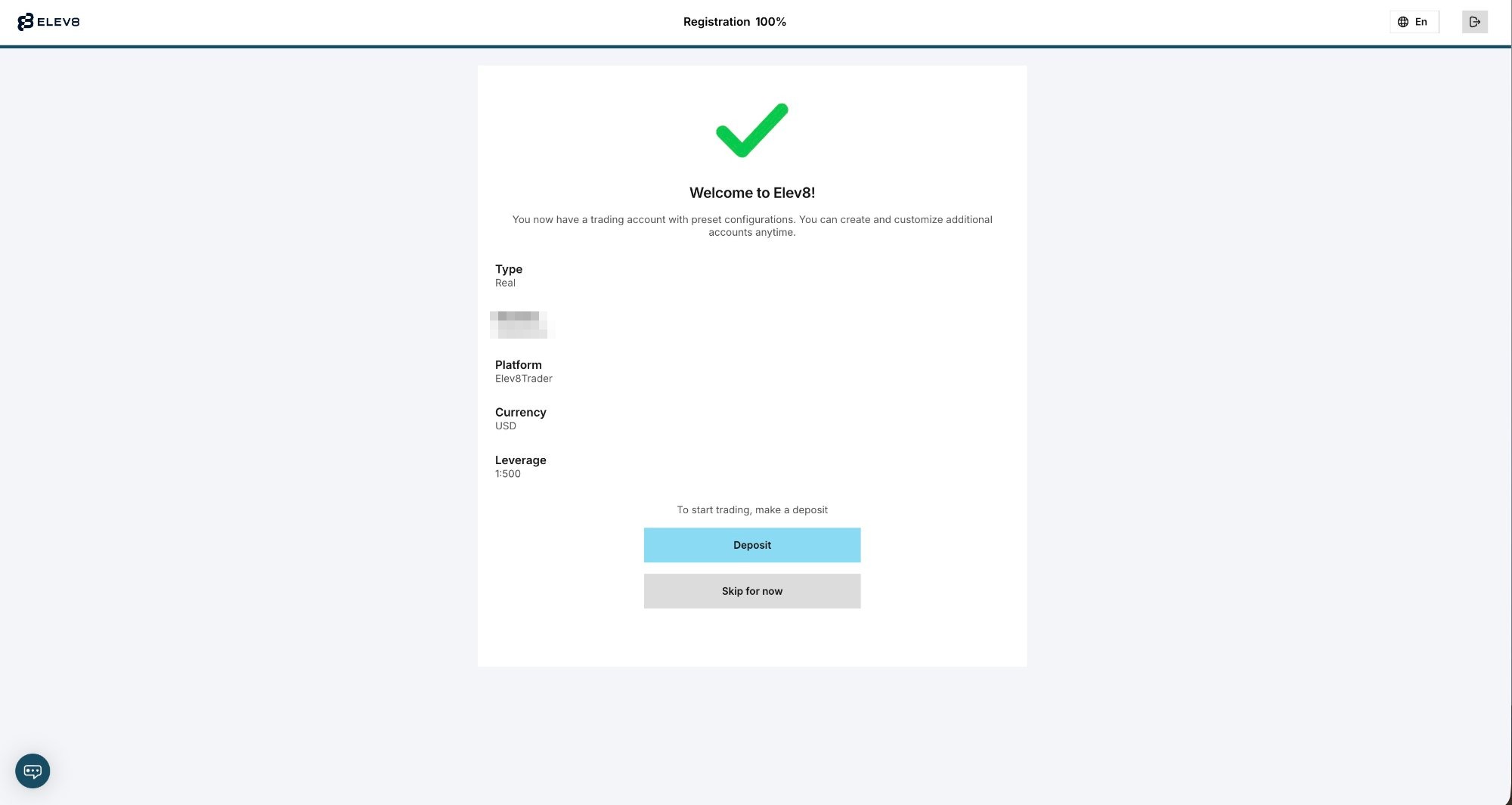
The Dashboard: your account overview
The landing screen of the Personal Area is the Dashboard. It's the overview you see first, and it's built around a "Your Accounts" panel that lists each trading account you hold — real and demo — with its account number, platform, base currency and current balance. From here, most of the other tools are one click away.
What you can generally do straight from the Dashboard:
- Read your account overview — which accounts exist, what platform each runs on, and what's in them.
- Create a new account — a "Create Account" action sits next to "Your Accounts" for adding a real or demo account.
- Jump to deposits and withdrawals — funding and payout actions are reachable from the dashboard and its side menu.
- Open the trading platforms — launch the web terminal or grab the downloads.
Because it's one account across web and mobile, the Dashboard shows the same picture wherever you log in — deposit on the web and the balance updates in the app, and vice versa. The base currency on the accounts we opened was USD; the broker's current published terms confirm USD as the account currency, converting deposits made in other currencies at the payment provider's rate. (Older OctaFX-era material mentioned EUR as well; treat EUR as region-dependent and check the broker's current terms rather than assuming it.)
One honest caveat, because the Dashboard is also where you fund the account: this broker is offshore-regulated only — by the FSC in Mauritius (Elev8 Markets LTD, licence GB21027161) and MISA in the Comoros (Finexis Markets Ltd, licence T2023320) — and the former CySEC (EU) entity was not carried into the Elev8 brand, so there's no EU/ESMA investor protection behind an account here. Looking around the Dashboard costs nothing; just understand that before you deposit.
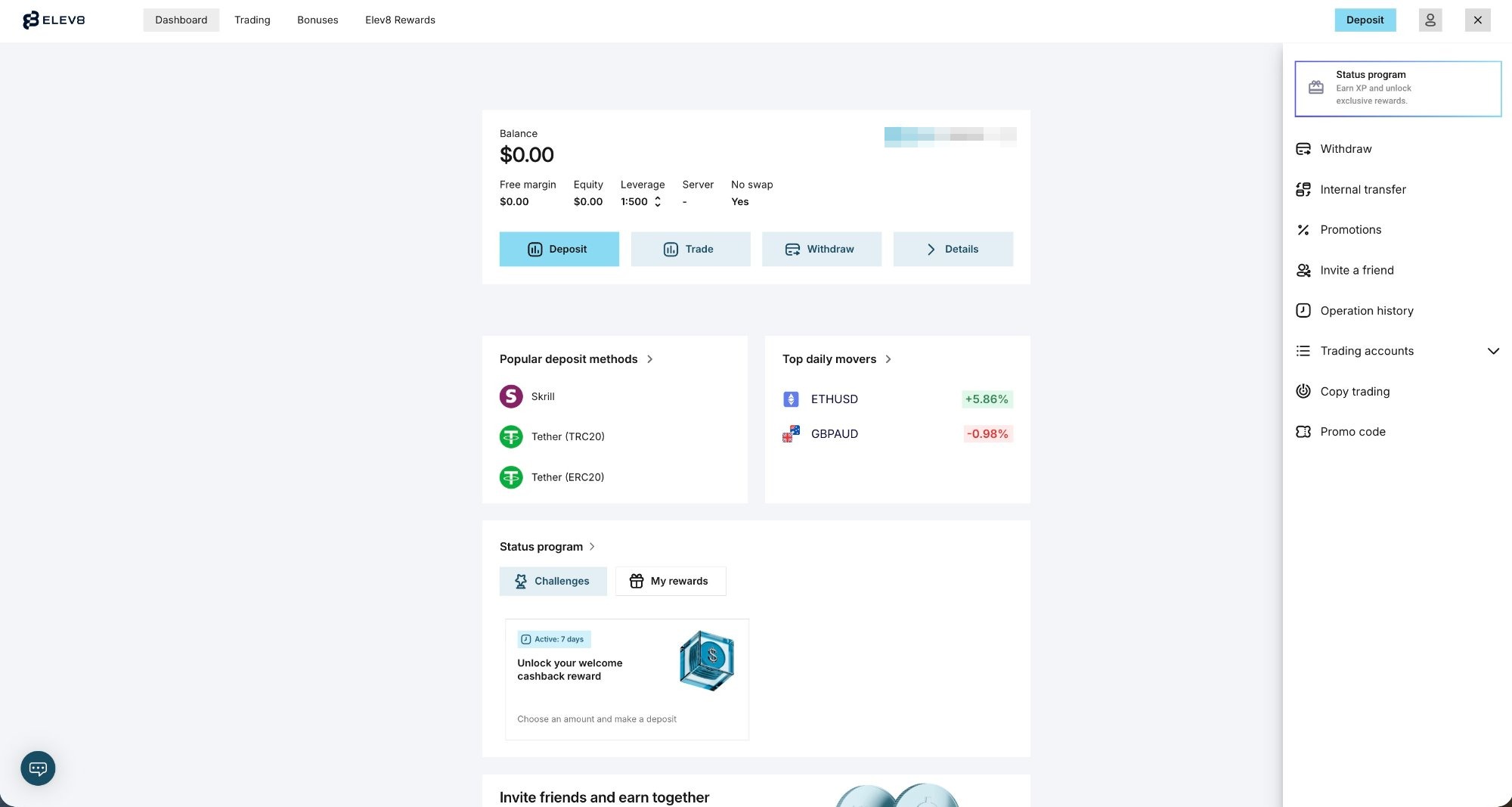
Create & manage accounts (real, demo, and platform)
A useful thing to understand about OctaFX (Elev8) is that it does not split clients into Standard / Pro / ECN / Cent tiers. What the broker calls "account types" are really three platform choices — Elev8Trader (the proprietary platform, formerly OctaTrader), MetaTrader 5 (MT5) and MetaTrader 4 (MT4) — all sharing the same trading conditions (same $25 minimum, same commission-free floating spreads, same swap-free terms). So when you create an account, the main decision is real or demo and which platform, not which pricing tier.
To open another account from inside the Personal Area, the broker's published flow is: log in, scroll down the Dashboard, press "Create Account" next to Your Accounts, choose a trading platform, then choose Real or Demo. A few practical points:
- Real accounts hold actual money and need verification complete before they can deposit and withdraw.
- Demo accounts use virtual funds on real market prices — good for practice. You can open as many demo accounts as you like and top up the virtual balance from the Dashboard's top-up option. (Demo accounts expire on inactivity: per the broker, MT4 after 8 days, MT5 after 30 days, and Elev8Trader-based demos are unlimited.)
- Platform choice mainly affects instrument count and maximum order size rather than your costs, since the conditions are shared. Our apps & platforms guide compares Elev8Trader, MT5 and MT4 in detail, and our demo account guide covers the practice route.
Managing existing accounts happens in the same place — each account in "Your Accounts" carries its own balance, platform and trading-account credentials, and you switch between them or open the terminal for a specific one from the Dashboard.
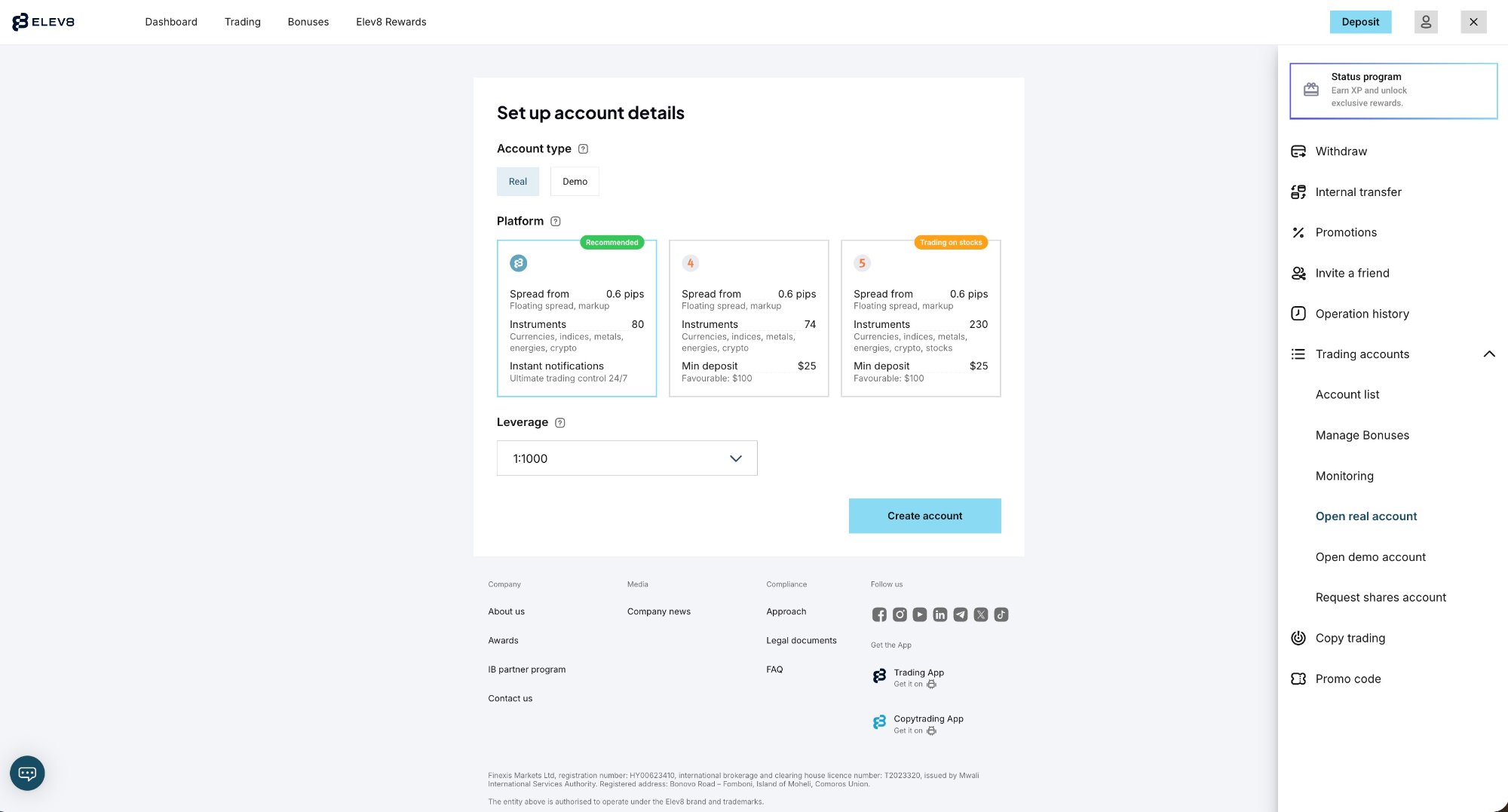
Deposit from the Personal Area
Funding happens inside the Personal Area. Once your account is verified, you open the Deposit flow from the Dashboard, pick a payment method, enter an amount and confirm. The minimum deposit is from $25, though it varies by method and region, and the broker suggests around $100 for smoother risk management.
The general method list across the broker's regions includes bank cards (Visa, Mastercard), bank and local bank transfer, e-wallets and crypto — but the methods you actually see depend on your country, because availability varies. Rather than assume a particular rail is available to you, treat your own Deposit screen as the source of truth; it shows only what works where you are. Our deposit methods guide breaks down the options by type, and the minimum deposit guide covers the amounts by method.
Two honest notes worth having before you fund. First, the broker states it charges no deposit or withdrawal fees — but your own bank or payment provider might still add one. Second, verification really does matter here: the Personal Area lets you look around before you're verified, but a real account only unlocks deposits and withdrawals once KYC clears, and it's smart to complete it before depositing (especially by card), so nothing stalls later. We cover verification in its own section below.
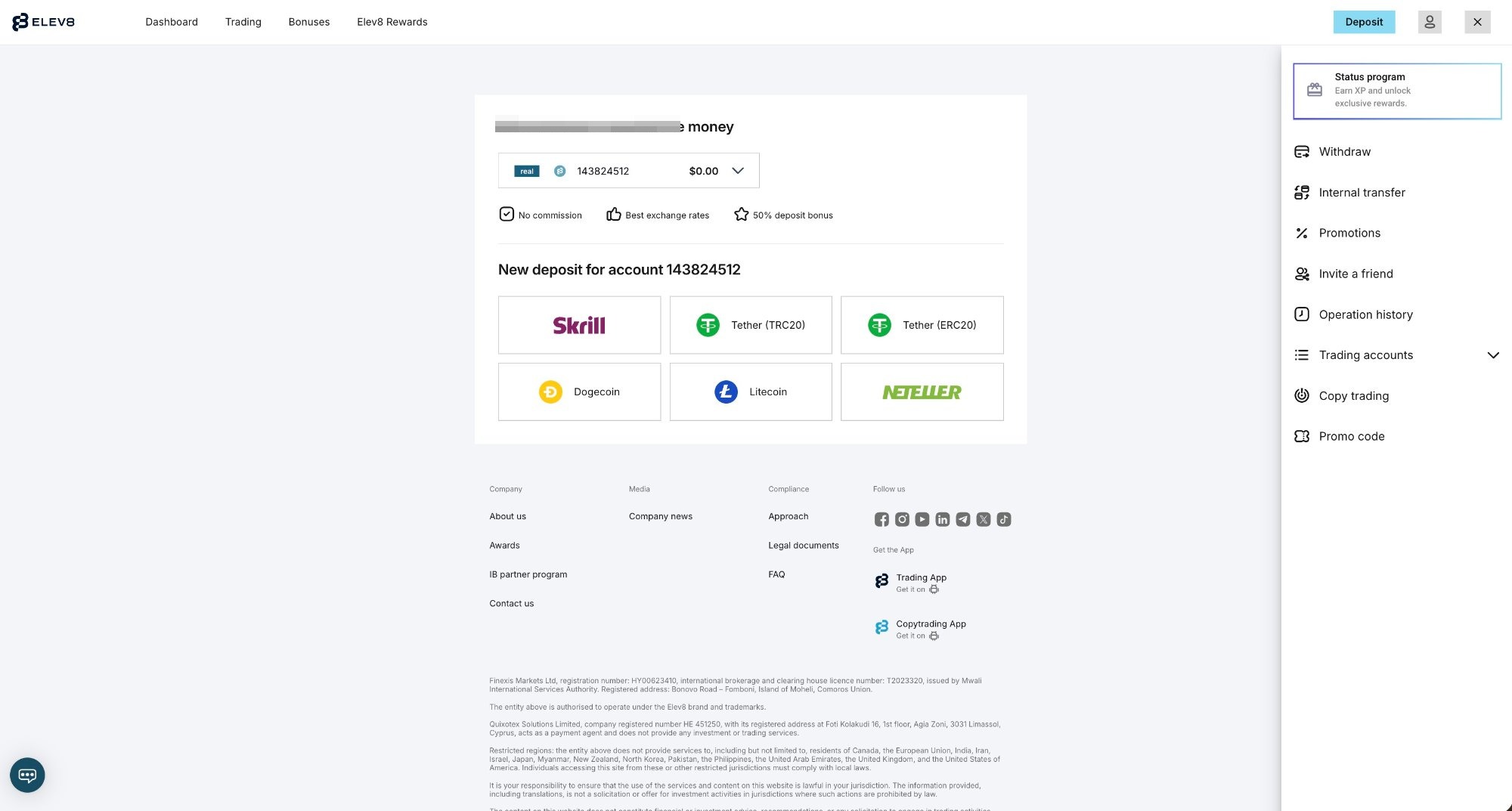
Wallet, withdrawals & moving funds
Getting money out is also driven from the Personal Area. Withdrawals are initiated from the account menu — typically via the Wallet, then Withdraw — where you enter the amount and the payout details, and confirm. Per the broker's published terms, withdrawal processing on its side is stated at around 1–3 hours; the total time to reach you then depends on your payment provider or bank, which can add its own delay.
A general principle the broker applies is that funds usually return the same way they came in — a card deposit is refunded to the card first, with the balance beyond your deposited amount going to another available method in your own (matching) name. That's standard anti-money-laundering practice across regulated and offshore brokers alike. For the full click-by-click payout flow and the common reasons a withdrawal stalls, see our how to withdraw from OctaFX (Elev8) guide.
Personal Areas like this one usually also let you move funds between your own accounts and the Wallet — for example, shifting balance from one trading account to another, or funding a copy-trading Wallet. The broker's own tools handle this inside the logged-in area; because we could not confirm the exact button wording in an official FAQ, we won't put a specific label on it — just expect to manage money between your accounts and Wallet from within the Personal Area, and follow the on-screen options.
Honest context on withdrawals specifically: reviews of this broker are genuinely two-sided. Fast execution and fast small withdrawals are widely praised; the recurring complaint theme across platforms is that large withdrawals can attract extra verification and delay, with a minority of users alleging frozen balances — claims we report as attributed, not proven. The practical takeaway is to finish KYC cleanly, keep balances at a level you'd happily withdraw in stages, and not treat any offshore broker as a place to park large sums.
Profile & verification (KYC)
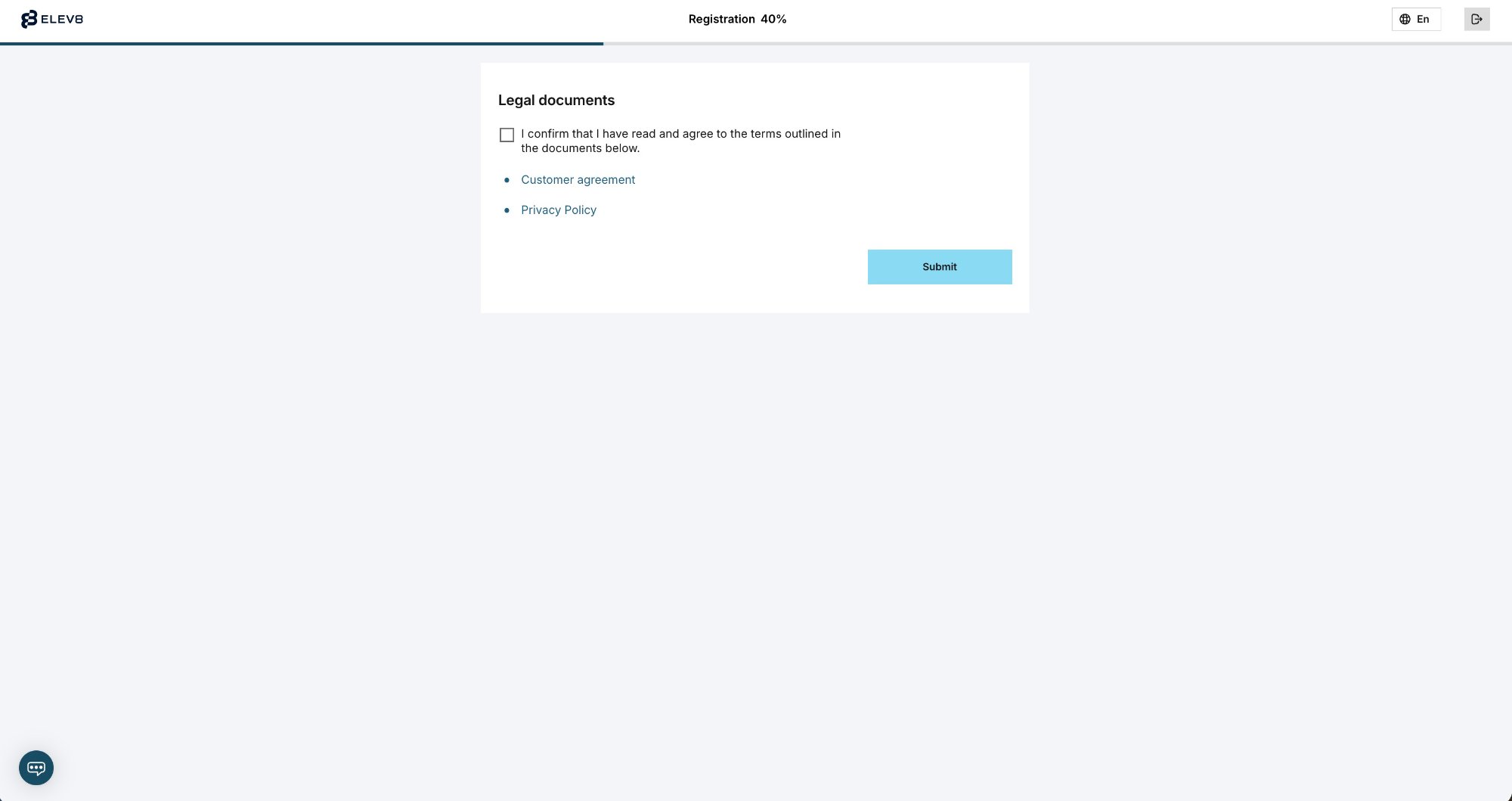
Identity verification lives in your Profile, under a Verification section. This is the gate that turns a look-around account into one that can move real money, so it's worth doing early and doing cleanly. The broker's published requirements are:
- A government-issued photo ID — a passport or national ID that is not expired.
- A proof of residence — an extra document required if you live outside the country that issued your ID.
Per the broker, verification usually takes just a few minutes but may take up to 24 hours under load or if a document needs a closer look. The classic causes of delay are a blurry upload, an expired document, or a name/address that doesn't match what you typed during sign-up — so use your legal name exactly as it appears on the ID, and double-check the details before submitting.
Verification is part of the same onboarding chain as the account-opening wizard — personal information, legal/regulatory documents and an economic profile — which is why real accounts collect financial-suitability answers (income band, source of funds, trading intentions) alongside your documents. Those are a compliance requirement, not a sales quiz; answer them honestly. The full sign-up-to-verification sequence is documented step by step, with screenshots, in our how to open an account guide. The upshot for the Personal Area: complete KYC before your first deposit, and your first withdrawal is far less likely to stall.
Platforms & the web terminal
The Personal Area is also your launchpad to the actual trading platforms — but remember the two-login distinction: the terminal uses your trading-account number and password, not the email/password you used for the Personal Area. Those trading-account credentials are generated when you create an account and shown inside the Personal Area.
From the logged-in Dashboard you can:
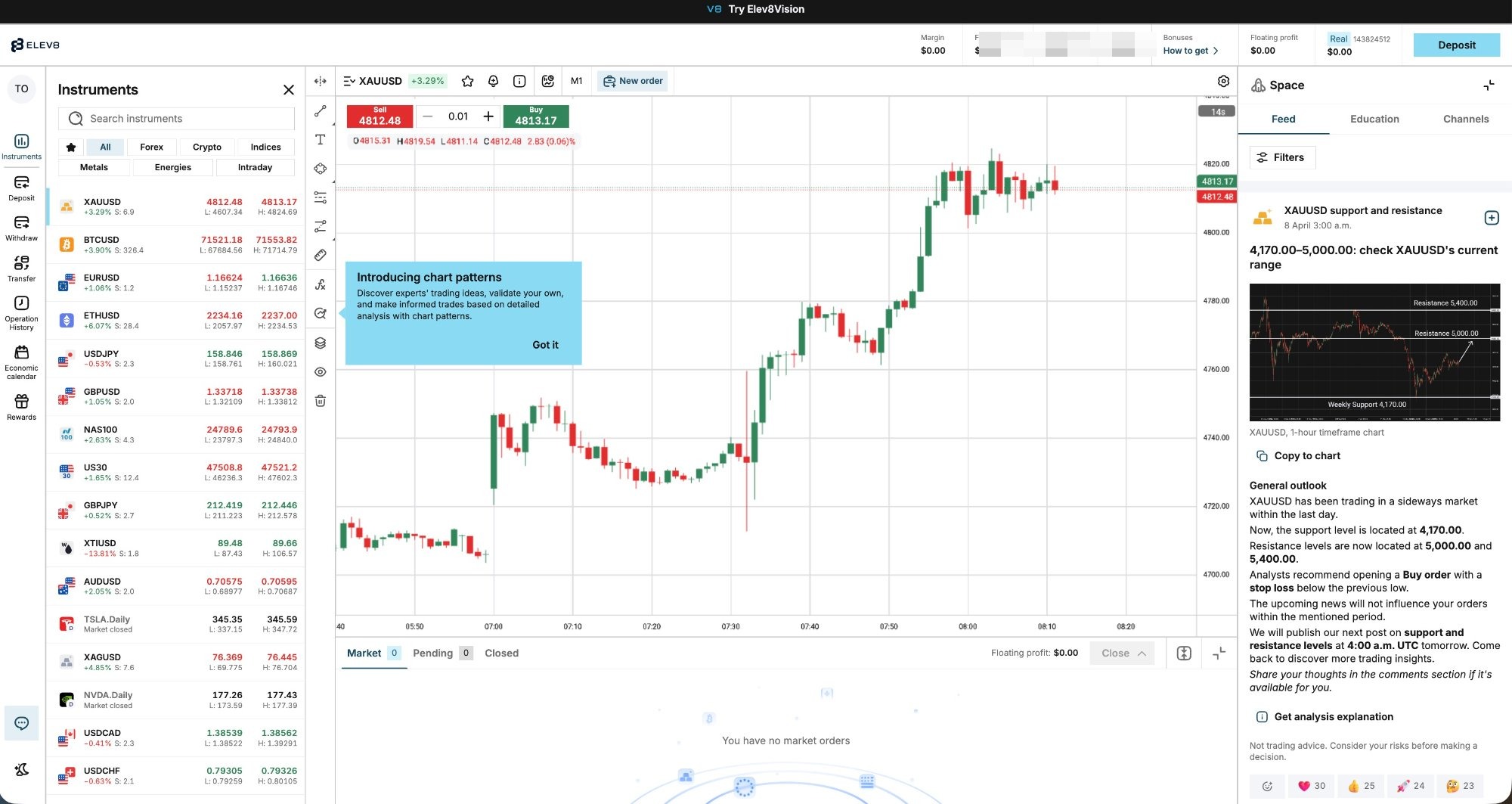
- Open the web terminal — the browser-based version of Elev8Trader/OctaTrader launches straight from your Personal Area, with nothing to install. It's the quickest way to start trading from the same place you're already signed in.
- Download the desktop and mobile platforms — MetaTrader 4, MetaTrader 5 and the proprietary Elev8Trader/OctaTrader app. For MT4/MT5 you then log in with the trading-account number, its password and the correct server, all shown in your Personal Area.
Because the conditions are shared across platforms, the choice mostly comes down to what you're used to and what you want to trade — MT5 carries the widest instrument set, MT4 is the familiar classic, and Elev8Trader is the broker's own streamlined option. Our apps & platforms guide compares them and covers the download-and-log-in steps for each. If a platform won't connect, it's almost always the wrong server selected or the trading password confused with the Personal Area password.
Copy trading & bonus activation
Two more features live in the client hub, and both are worth knowing before you commit money.
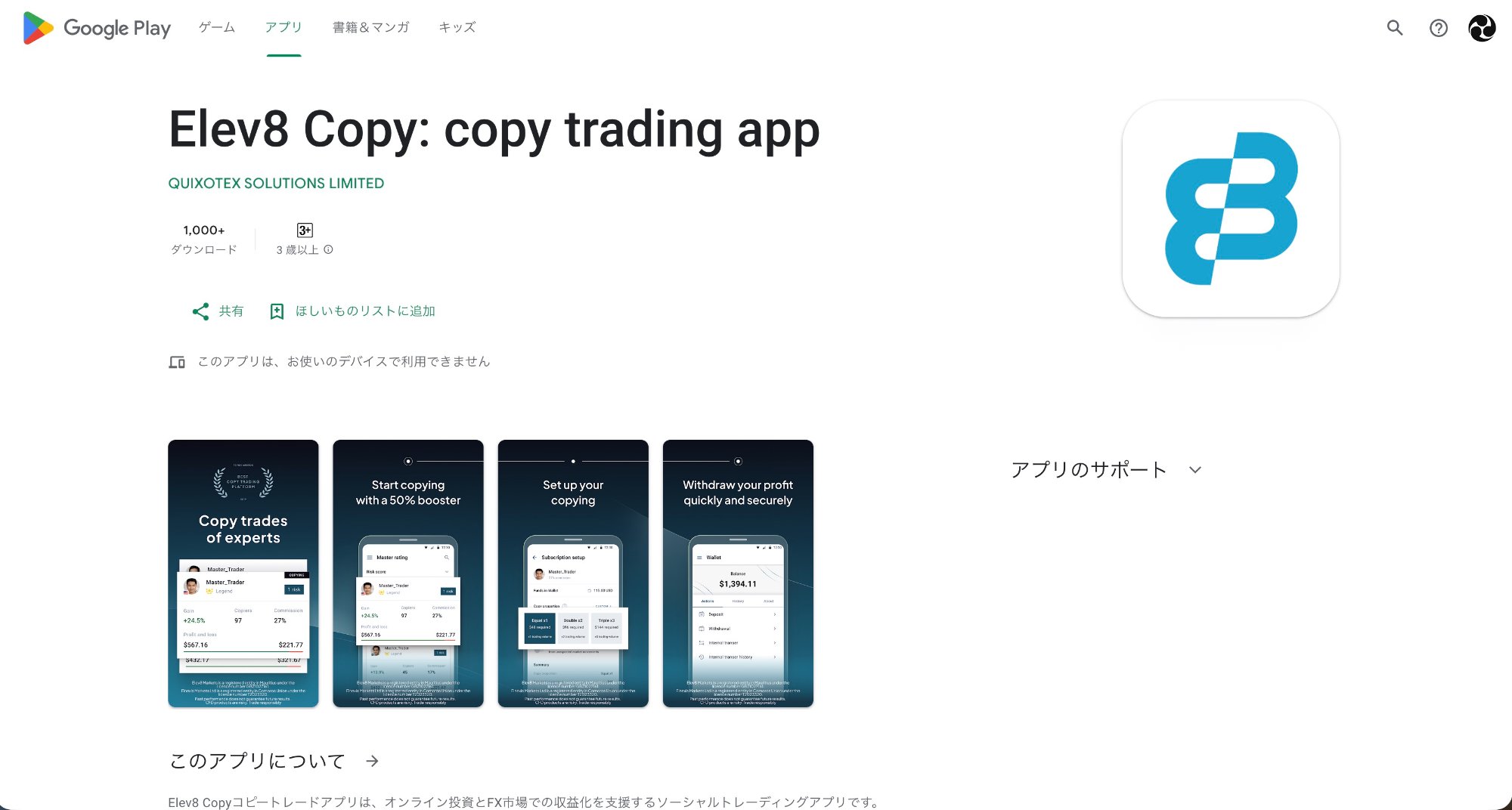
Copy trading. The broker offers a copy-trading feature (accessed through the Personal Area and a dedicated mobile app) where a Copier funds a Wallet and copies one or more Master Traders, with a portion of profit shared to the Master per the broker's terms. It's marketed as a hands-off way to follow experienced traders, but the honest framing is that copying still carries full market risk — a Master's past performance doesn't guarantee future results, and you can lose money. Our copy trading guide unpacks how it works and how to size it sensibly.
Bonus activation. The broker runs a deposit bonus (a 50% deposit bonus, per its published terms) that you activate in your profile after depositing, rather than something applied automatically. Deposit bonuses always come with conditions — how the bonus can be used, how it interacts with withdrawals — so read the specific terms in your Personal Area before opting in. Treat any bonus as a secondary consideration, not a reason to deposit more than you planned.
Both features are optional. You can run a plain trading account with neither, and for a beginner that's often the cleaner start: verify, fund the minimum, trade small, and add copy trading or a bonus only once you understand the mechanics.
Bottom line
The OctaFX (Elev8) Personal Area is one screen that runs almost everything around your money: a Dashboard and account overview, a Create Account panel for real and demo accounts (choose Elev8Trader, MT5 or MT4), Deposit and Wallet/Withdraw functions, a Profile for verification, links to the web terminal and platform downloads, and copy trading and bonus tools. The one thing it doesn't do is place trades — that's the separate terminal, with its own login.
Used well, the flow is simple: sign in to the Personal Area, verify your identity early, open the account and platform you want, deposit the minimum you're comfortable with, and keep the two logins straight. And weigh the honest caveat with a clear head — this broker is offshore-regulated only (FSC Mauritius and MISA Comoros), with no tier-1 or EU-compensation backstop, and reviews flag friction on large withdrawals. Deposit only what you can afford to lose, and read our is OctaFX (Elev8) safe? coverage before funding anything more than a token amount.
The broker in this guide
Commission-free trading, copy trading, MT4/MT5 and OctaTrader. Minimum deposit from $25 (varies by method). Offshore-regulated (Mwali/Comoros) — read our full review before you decide.
Open OctaFX (Elev8) account →FAQ
What is the OctaFX (Elev8) Personal Area?
It's the logged-in client hub (sometimes called "My Octa" or the Dashboard) that you reach with the email and password you registered with. From it you see your account overview, open real and demo accounts, deposit and withdraw, verify your identity, launch the trading platforms, and manage copy trading and any bonus. It's separate from the trading terminal, which places trades using its own account number and password.
How do I open a new account inside the Personal Area?
Log in, scroll down the Dashboard to "Your Accounts," press "Create Account," choose a trading platform (Elev8Trader, MT5 or MT4), then choose Real or Demo. Real accounts need verification complete before they can deposit and withdraw; demo accounts use virtual funds and you can open as many as you like.
Where do I deposit and withdraw in the Personal Area?
Deposits open from the Dashboard's Deposit flow — pick a method (options vary by country), enter an amount from the $25 minimum, and confirm. Withdrawals are initiated from the account menu, typically via the Wallet then Withdraw. The broker states around 1–3 hours of processing on its side; your bank or payment provider can add more time.
How do I verify my identity (KYC) in the Personal Area?
Go to Profile, then Verification, and upload a government-issued photo ID that isn't expired; if you live outside the country that issued your ID, you also upload a proof of residence. The broker says verification usually takes a few minutes but can take up to 24 hours. Complete it before your first deposit so payouts aren't held up later.
Is the Personal Area login the same as my trading platform login?
No. The Personal Area uses your registered email and password. The trading terminal — the web platform, MT4 or MT5 — uses a separate trading-account number, that account's password, and the correct server, all shown inside your Personal Area after you open an account. Confusing the two is the most common login mistake.
Ready to set up your account?
Register free, verify your details in the Profile section, and use the Personal Area to open an account (from $25) and launch your platform — depositing only what you can afford to lose under an offshore-regulated broker.
📢 OctaFX is now Elev8 — same broker, same account. You’ll see the Elev8 name and logo after you click.
Open OctaFX (Elev8) account →Trading forex/CFDs carries significant risk. This is general information, not financial advice.